Showing posts with label Rooms. Show all posts

Friday, April 18, 2014

To/From Room Door Parameters

NOTE: This is a re-post from the HOK BIM Solutions blog

Prior to Revit 2014, these parameters were very unreliable and prone to error. With Revit 2014, we saw the introduction of a new family parameter called Room Calculation Point, which can help with reporting consistency. However be mindful of the fact that this setting has to be manually activated, otherwise the information will remain as unreliable as before. You can read more about the topic in this RFO thread.

Here are some facts about how these parameters work without the Room Calculation Point enabled:

  1. If rooms already exist on either side of a wall when a door is inserted, the room on the swing-side of the door will be set as the To Room;
  2. If the door is then flipped, the To/From Room parameters do not update. The user has to make manual adjustments if desired;
  3. If no rooms existed when a door was inserted, the first room added to either side of the door will be set as the To Room;
  4. Both doors and rooms have to be in the same model for these parameters to report. The schedule can reside elsewhere, however manual changes between the two reported rooms have to be made in the host model.

As you can see, the reported information is prone to error and highly unreliable. Another big issue is the fact that door swing direction does not imply “ownership”: a door could be swinging out of a room and technically belong to that space. It is also usually not possible to infer hardware functionality from swing direction and door “ownership” alone.

By enabling the Room Calculation Point, we can at least address data errors. The To/From Room parameters will then update consistently regardless of whether the door is placed before/after the rooms, or whether the swing direction is altered after placement.

As with a lot of things in our industry, there is no standard way of documenting doors: some include information for the room that the door “belongs” to, some include both To/From Room information, while others completely exclude these columns of data. I happen to be of the opinion that the latter is the most prudent choice, although the Room Calculation Point parameter makes me less concerned about data inaccuracy. However be very careful: changing the To/From Room parameter when the Room Calculation Point is enabled, will actually flip the swing direction! This is a behavior change that you really need to be aware of.

If you happen to use the To/From Room parameter to report “ownership” only, you can do so with even greater reliability by employing the following trick. The little leaders are hardwired in the family template to prevent them from crossing the Internal X-Axis:

RcP1

By shifting family geometry, you can then consistently report “ownership”. In the example below, both the To Room and From Room parameters will always report the room on the swing side of the door. Note that you can flip the To/From direction if you need to, although that would not change how these values are reported in the example below:

RcP2

The other very positive side-effect of doing this is that now you cannot accidentally flip the door direction from the schedule, since both To/From Room parameters will report the same data. If you want to report ownership based on the outswing-side, simply shift the geometry in the opposite direction. Please note that “ownership” rules cannot be changed at the instance level (ex: you have to commit ownership of a door to always be on the swing side at the family level), so if you need to change this and still use the Room Calculation Point, you will have to double up on your family definitions in a project, or employ some of the workarounds described in this RFO thread.


Share/Save/Bookmark

Wednesday, June 2, 2010

Design Options & Rooms

Unless I’m dreaming, in earlier versions of Revit (somewhere around 8.1 and 9.1), you were not able to have a room bound by elements within design options. The warnings you got had to be resolved and could not be ignored like the ones in Revit 2010 and 2011. I honestly don’t remember when this change occurred (or as I said, whether I’m just dreaming), so if you know the details, I’d appreciate if you could comment with that info.

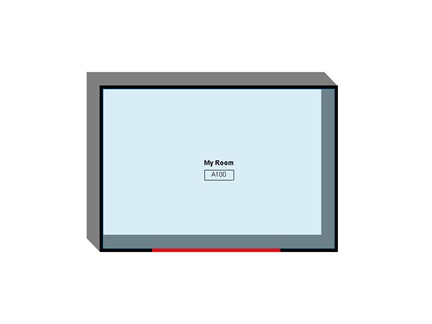
So here’s a little study of these conditions and what might prompt a warning. Below is an image of a room bound by walls in the Main Model and another wall in a design option.

Fig1

Fig2

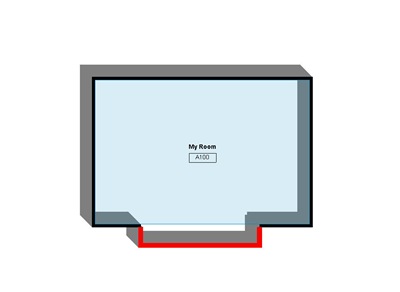
At this point, I have 2 options and the primary is the one shown above. I also have no views forced to a specific option (all are set to <Automatic>). The other option is as shown below. So what will happen to the the room boundary since the bounding elements in the other option are in different positions?

Fig3

The above plan view was forced to the Pop-Out Walls option. Notice that the room is still bound by the wall in the Primary option. However now Revit generates the following warning:

Fig3b

EDIT: As of Revit 2015 R2 UR9 (just noticed it, but this behavior could have changed a while back), this warning no longer shows up in this scenario. All other behaviors are still the same.

This warning did not exist before (EDIT: at it is gone away once again!) and is Revit’s way of alerting you that your room area might not be computed as you’d expect it to be based on the visible walls in the view (this becomes very clear when you enable the Interior Fill subcategory under Rooms).

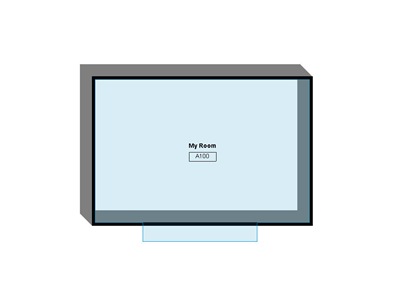
Changing the Pop-Out Walls option to Primary results in the view as shown below and the warning goes away. Notice that the room is now bound by the walls in the Primary option.

Fig4

If I force this view to show the Simple Wall option, the warning is generated once more (EDIT: no warning shows up anymore in this scenario as of Revit 2015 R2 UR9 – behavior could have changed in earlier versions) and we get the following. Notice how the room boundary does not match the actual configuration shown in plan.

Fig5

So to sum up:

  • If room-bounding walls exist within design options, the walls within the Primary option govern;
  • Warnings are generated only if one or more views are forced to display an option other than the Primary. (EDIT: no warning shows up anymore in this scenario as of Revit 2015 R2 UR9 – behavior could have changed in earlier versions)


Share/Save/Bookmark

Thursday, March 12, 2009

Rooms

In Architecture, one of the most important parts of the whole process is to decide what to build. In the US, we call it “Programming”. In Europe, we call it “Briefing”. And I’m sure in some other region around the world it’s called something else!

Essentially this is a process by which we ask questions about the spaces we’re designing for. Questions such as, “what size”, “what finishes”, “what height”, “what equipment”…once we have this information, then and only then can we design something. We can later assess and gauge whether we did a good job by ensuring that at least we met these agreed upon requirements.

Arguably, the most important “what” question is about size: the “Program Area” or “Target Area” of a room. Why isn’t this a built-in parameter in Revit rooms? This is becoming increasingly frustrating as we start looking at API tools to enhance our workflow. For example in the SDK, there is a handy “Room Schedule” tool (thanks for pointing this out Guy!) and the example Excel file has a column for “Room Area”. This example is “flawed” if you ask me, because that column should be called “Target Area”. It’s not “Room Area” until the room is placed in an enclosure This API tool can create Revit Rooms from an Excel workbook and can also update the workbook from the Revit Room data.

Assuming the column was called “Target Area”, the only way to really populate that parameter in a project is to add it beforehand to your project/template file as a Project or a Shared parameter and customize your code to write to it. But WHY NOT have it already built-in? The act of programming is central to Architecture, and the information collected during this process should be easy to record in our B I M. It should not require additional custom parameters. Because of this, we cannot exploit the full potential of this SDK tool as it needs further customization to have it copy the “Target Area” column to our version of “Program Area” in a project.

Another example where we have to deal with this same issue is when using Trelligence Affinity with Revit. Even in this case we have to customize our installs to map to the correct Program Area parameter. These are totally unnecessary pains that both 3rd party software developers and us working in this field have to endure. We’d all rather direct our energy to more important parts of our respective projects instead!


Share/Save/Bookmark