Showing posts with label Warnings. Show all posts

Monday, March 3, 2014

Disk Space (Length?)

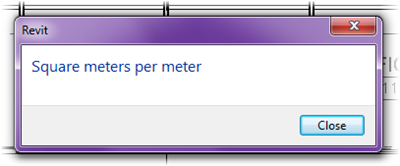
So you probably came across these highly informative messages at some point:

SF per FT

SQM per M

What Revit is usually trying to say is that there isn’t enough disk space and it cannot sync with central. The above were displayed on the same project, whose units were set to Imperial, so I’m not sure why Revit had a metric fit there for a moment. It appears that disk space is perhaps being measured per length of track on the disk? Ah shucks, don’t try making sense of it, just know to look at how much hard drive space (or perhaps network disk space) you have next time your users get these gems!


Share/Save/Bookmark

Tuesday, December 14, 2010

AUGI Update (good news!)

I couldn’t wait to let you know that there’s good news! I’ll just quote David Harrington from this thread:

1. AUGI’s previous web service provider (Illiac) has assured us that the historical forum data is not lost nor are its backups. The data exists in full and will be restored.

2. Illiac has prepared a temporary forum system with the “old” forum data to go online.

3. AUGI and Illiac are working to finalize an agreement to transfer the forum data to AUGI.

4. Illiac has the temporary site ready to go live and AUGI is prepared to go live once the agreement is in place.

5. Both parties expect an agreement to be reached within 24 hours.

6. Within a few days after the agreement is in place, the temporary forum system is expected to be online and AUGI will begin developing the permanent forum site.

7. Because of the functional limits within the EE forum software, coupled with having access to the old forum data and input from members, AUGI will be reverting back to vBulletin forum software which should be operational within one month after the agreement is in place.

8. Based on input from members and functional limits of EE forum setup, AUGI will be reverting back to the “familiar” forum topic structure.

9. Once the vBulletin software is configured and populated with the required forum structure, all old forum posts will be imported and merged with EE forum posts. Then the temporary site will be deactivated.

So there you have it, the Grinch won’t have his way! Things should be returning to normal soon and the world’s equilibrium and harmony will be restored. Now if only we could solve the 25% to 50% unemployment rate in our industry…

To conclude this short announcement, how about a snapshot of a warning that I have never seen before? There’s always a first time I guess =)


Huh


Share/Save/Bookmark

Wednesday, June 2, 2010

Design Options & Rooms

Unless I’m dreaming, in earlier versions of Revit (somewhere around 8.1 and 9.1), you were not able to have a room bound by elements within design options. The warnings you got had to be resolved and could not be ignored like the ones in Revit 2010 and 2011. I honestly don’t remember when this change occurred (or as I said, whether I’m just dreaming), so if you know the details, I’d appreciate if you could comment with that info.

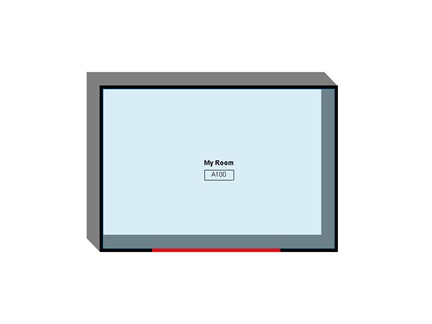
So here’s a little study of these conditions and what might prompt a warning. Below is an image of a room bound by walls in the Main Model and another wall in a design option.

Fig1

Fig2

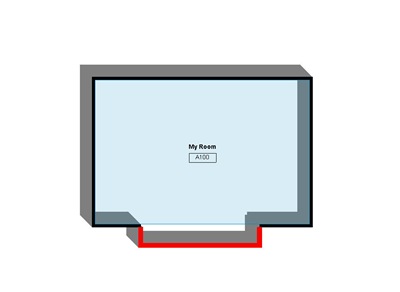
At this point, I have 2 options and the primary is the one shown above. I also have no views forced to a specific option (all are set to <Automatic>). The other option is as shown below. So what will happen to the the room boundary since the bounding elements in the other option are in different positions?

Fig3

The above plan view was forced to the Pop-Out Walls option. Notice that the room is still bound by the wall in the Primary option. However now Revit generates the following warning:

Fig3b

EDIT: As of Revit 2015 R2 UR9 (just noticed it, but this behavior could have changed a while back), this warning no longer shows up in this scenario. All other behaviors are still the same.

This warning did not exist before (EDIT: at it is gone away once again!) and is Revit’s way of alerting you that your room area might not be computed as you’d expect it to be based on the visible walls in the view (this becomes very clear when you enable the Interior Fill subcategory under Rooms).

Changing the Pop-Out Walls option to Primary results in the view as shown below and the warning goes away. Notice that the room is now bound by the walls in the Primary option.

Fig4

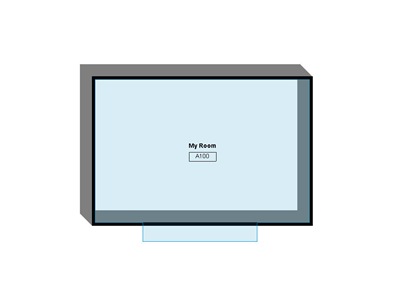
If I force this view to show the Simple Wall option, the warning is generated once more (EDIT: no warning shows up anymore in this scenario as of Revit 2015 R2 UR9 – behavior could have changed in earlier versions) and we get the following. Notice how the room boundary does not match the actual configuration shown in plan.

Fig5

So to sum up:

  • If room-bounding walls exist within design options, the walls within the Primary option govern;
  • Warnings are generated only if one or more views are forced to display an option other than the Primary. (EDIT: no warning shows up anymore in this scenario as of Revit 2015 R2 UR9 – behavior could have changed in earlier versions)


Share/Save/Bookmark

Monday, December 21, 2009

Troubleshooting

Today I was opening the Arch model (local) and got a ton of warnings regarding dimension strings that needed to be deleted due to their references being invalid. The dialog below was followed by two more dialogs and hundreds of deleted elements.

Warnings

Unfortunately Revit doesn’t really do a good job at letting us investigate what the heck is going. A way to open a view and see the dimensions about to be deleted would be a good start.

At this point the only thing you can do is to click the Expand button and save the report to html so you can view it later. Unfortunately my project was issued for bid last week and we’re now working on some revisions, so losing all these dimensions is a big problem. The only thing that came to mind was a problem with the structural linked file. So once the project opened, I looked through the html file, picked an enlarged plan detail and opened it up. As feared, the grids and columns were missing, which took away the dimensions.

Now the silver lining is that I was the only one working at this time, so I quickly closed out and checked what was going on with the structural file. Someone inadvertently wrote over the central file while in the process of doing a save-as with this project to start a new one(don’t get me started on that!). So no wonder that dimensions all of a sudden had invalid references!

Lessons learned

  1. Keep a weekly pdf/dwf set so you can easily compare what was lost when things go haywire. Or kill trees and print on paper.
  2. When bad things happen, make sure everyone gets out of the project while troubleshooting. This prevents major loss of work. For example in this case if someone saved to central after deleting all dims, we would be in some serious trouble. Hopefully now all we need to do is restore the Structural model and re-open the Architectural local.
  3. Training, training, training (if you’re in management, this is the most important of all).

For Autodesk

  1. Give us a way to investigate and see what is about to happen to the model!!
  2. Give us a way to unload links while opening. This way we can keep working and not lose any dimensional references when links are messed up. Currently I’m on hold while we fix the problematic link and then re-open the local. My only option at this point is to close everyone out of the Structural model, rename the folder and then launch my local, thus preventing it from finding the link and only temporarily remove dimension references, rather than permanently.

EDIT: As reader “S” suggested in an email to me, you can unload the workset on which a Revit link resides (which is why it’s recommended that each Revit link is placed on a unique workset). This acts similar to unloading the link while opening the file. However if the problem file was a dwg for example and this was linked in a drafting view, there would be no way to unload it except by renaming the file or folder in which it resides using Windows Explorer.


Share/Save/Bookmark