Showing posts with label Tips n Tricks. Show all posts

Wednesday, March 19, 2014

Creating Non-Hosted Families from Hosted Versions

I just recently discovered this gem and it seems there are a few people that know about it. Perhaps it was discussed in a forum or some other place, but since I never came across this nice little tip, I thought of sharing it here.

In this post, I talked about a “pseudo face-based family” and this week while I was not even thinking about Revit or anything work-related for that matter, I just had a thought and wondered whether the hosting extrusion could be deleted (I know, my brain is weird sometimes!). So I tested this out and then realized that the resulting family is no “pseudo-anything”, but simply built into a host-less template with the Work Plane-Based option enabled.

FamCat and Params

So the highly-intuitive process (sarcasm anyone?) of taking a family that is built in a hosted template such as face-based, wall-based, ceiling-based, etc. and produce a non-hosted copy is as follows:

  1. Place an instance of the family you want to hack in the drawing area. You can insert multiple ones at the same time;
  2. Save the file and close it;
  3. Open a new Revit file from no template. This ensures it is completely empty and Revit will thus create this hacked copy when we do step #6;
  4. Link the previously saved model into this new file;
  5. Go to the Collaborate Tab>Copy/Monitor>Select Link and pick the linked file. Once in C/M mode, click Coordination Settings and make sure that the family types you want to hack are set to “Copy Type”;
  6. Click the Copy button and pick the families you want to hack;
  7. Finish and exit from this mode when you’re done.

The copied families that Revit created are hacked versions and no longer built inside of hosted templates. Now simply edit the families, delete the extrusions, set them to not be work plane-based and save them…done!

Now I ask, if Revit is able to do all this, why not give us a stupid button instead of this frustratingly long and obtuse workaround?!


Share/Save/Bookmark

Sunday, April 21, 2013

Bloated Revit central files

NOTE: This is a re-post from the HOK BIM Solutions blog

A couple of weeks ago I was asked to take a look at a project that the team simply couldn’t open up. The file wasn’t giving any errors and the progress bar sat there at 99% and would not finish opening. To put things in context, this was an FF&E hospital project with about 12 floors and contained links to various other files that housed the building core & shell geometry.

Right off the bat I noticed the excessive file size (about 595MB). By closing the worksets that contained other linked Revit models (about 11 of them), the project finally opened. File size is typically one of the first things to look at when faced with projects that won’t open. In some cases the issue can be easily rectified through a purge of unused elements and a compaction during a sync with central, typically resulting in a reduction of 30% to 50%. Sometimes users fail to realize that if bloated files exist across the board in their project and they load these files as links, they can easily suffer serious performance issues as they run low (or out of) RAM. This is one of the most avoidable problems that BIM Coordinators should watch out for on their projects and can be easily prevented through regular file maintenance.

However in this instance, a purge and compaction only resulted in trimming about 90MB off the file (not bad, but not enough). So it was time for a much more in-depth analysis of the file contents.

My first suspicion was that the project might have contained imported CAD files. A quick search with Ideate Explorer did not reveal any so then I started looking at groups of elements with large quantities. A good troubleshooting strategy is to delete these large group of elements, save a new file (as a new Central) and see how much space is recovered. I took out all furniture families (about 16,000 instances) but the file barely lost 40MB. The families in question were very lightweight and contained mostly plan symbolic representations, which was a smart move for this project’s purpose.

Next I noticed there were almost 7,000 rooms, but did not suspect these would be the source of the problem. After all, they just contain some data, right? Well, it turns out rooms were to blame for this bloated file but I couldn’t figure out how to get this excess amount of bits and bytes released.

After filing a Support Request with Autodesk, I did some more testing based on their recommendations and saved a series of files after deleting rooms by floor (about 8) to try and identify if rooms on a certain floor were consuming more file space than others. Averages revealed that rooms on some floors were using a bit less (ex: 20KB/room) when compared to others (65KB - 83KB/room). However this analysis still led to nowhere and I did not receive further suggestions. Usually Autodesk is eager to take a look at the project file itself but this was not the case this time, even though the SR was filed as Urgent. We were running out of time, so it was time for some drastic measures.

After a purge and deletion of all rooms, the file went down to a very reasonable 65MB. That gave me a goal to work towards. Rooms were consuming about 300MB and if placed rooms were copied and pasted into a new project, they resulted in a 100MB file, which is about 17KB/room. Deleting 800 unplaced rooms from a room schedule did save 23MB, but somehow, about 200MB of space was being held hostage by the remaining 6,160 placed rooms.

Here are the steps taken to fix the file:

  1. Opened a detached copy of the original project and deleted all rooms. The file was saved as a new central, no purging (155MB);
  2. Opened a detached copy of the original project and deleted all model elements, links, families, sheets and views, leaving just placed rooms. The file was saved as a new central, no purging (108MB). Note that deleting model elements is easier to accomplish by going through the Family tree in the project browser. Since Revit does not let you delete the last type of a system family, you need to create a duplicate of the family and then delete the original one. This ensures that if any elements exist in the project with that type, that they are deleted. Sheets and views are easily deleted through a sheet schedule and view list respectively, both set to not itemize every instance. This allows you to pick the single displayed row and delete them all at once;
  3. Opened the central file created in step 1, created workset “Rooms” and set as Active;
  4. Linked the file created in step 2, Auto – Origin to Origin;
  5. Selected the link and bound it, turning it into a group (did not select levels and grids to be inserted). When prompted, removed the original link as no instances were now placed;
  6. Selected the resulting group and ungrouped it. All rooms were now placed exactly in their original location, with the exception that their workset was now “Rooms”.
  7. The new central file was saved (255MB) and those 200MB were finally released. By purging, this file should ultimately end up as a 170MB project, which is much more reasonable.

You might not be faced with this exact same problem on any of your projects, but I hope it outlines the systematic approach to troubleshooting and resolving issues with bloated files.


Share/Save/Bookmark

Saturday, August 18, 2012

Tangential arcs

The question on how to create parametric tangential arcs in families (ex: structural section profiles, extrusion sketches, etc.) seems to come up quite often. And it can be done in Revit: it’s just not as straight-forward.

An AUGI thread resurrected this discussion last month and in my opinion, it was approaching the question from the wrong end. Sure, you can do complicated trigonometric formulas to solve this (I know, I am the Count (Formula) after all!), but it is best to avoid them if at all possible. Intuition says that if you keep things simple and parameterize through simple labels (no calculated parameters), everything should run faster, leaner and more efficient.

So you be the judge. Should you go with this (source: BIM and Beam):

Trig

or this?

NoTrig

You be the judge! The key is to use the "Tangent End Arc" type and then constrain along both sides to set where the center of the arc is, (no need to parameterize the arc’s radius). More details can be found in the AUGI post.

EDIT: And even more detail can be found here on Steve’s blog!


Share/Save/Bookmark

Thursday, June 14, 2012

Wall Quirks

Got very busy around here, hence my extended silence. To make matters worse, there’s Euro 2012 now so…while Zach Kron continues to chirp away at funky forms, nodes, divided surfaces and adaptive component families, I think I’m going to continue pointing out the Quirks of Revit WallsTM .

When you unlock the bottom of a wall layer, you can extend it past its bottom constraint (and vice versa for the top). This functionality has been in Revit for as long as I remember. Nowadays we get a lot more control through Parts functionality if we want to fine-tune for panel joints, thickness, extents, etc. Layer unlocking is very handy when trying to rest the base of masonry veneer on a brick ledge or when you want the gypsum board layer to stop below the top of the stud layer for example.

However there is a peculiar condition that we’re presented with when we edit the profile of a wall to create an opening. I totally understand the programming logic of why, but from an architect/builder perspective, this does not make any sense at all. When the profile is edited, the bottom-most horizontal line is still recognized as the base of the wall, so if you edit the Base Extension Distance, you end up with that same extension happening at the “opening head”. And as you might have guessed, the programmer and I just don’t see eye to eye on this one as I don’t believe it should behave this way. Anyone else agree?

Unlocked Layers

So in an effort to outsmart Revit, I inserted an opening instead. As you can see in the middle example above, it seems to solve the issue. However this only works if there is a positive offset value for the opening and as you can see on the right example with the opening having a negative or no base offset, the opening head is messed up once again…#fail3.

By now you’re ready to stop using the unlocked layer functionality; but wait a minute, there is a way (as always!): start an in-place wall family and create an opening in there (Revit will ask you to pick a host).

InPlace wall opening

I know, it shouldn’t be this hard. We see eye to eye on that one.

When working on my first Revit project, I dealt with this same issue only to have it resurface years later while helping another team. It was actually the same exact design scenario: an exterior wall with varying “panel” finishes and continuous stud backup. The team edited the profile of one wall and nested the other in. However when the layers were subsequently unlocked and the masonry lowered to rest on the brick ledge, all head conditions messed up and started overlapping the layers of the nested wall. In such a case, your best option is to not even mess with openings and just embed one wall within another using the Cut tool in plan view, since it’s easier there.

Embedding walls

Now when you need to adjust the size and location of the embedded walls, you won’t have to chase around the project correcting the openings as well. And the unlocked layers won’t give you any heartburn either.


Share/Save/Bookmark

Tuesday, July 20, 2010

Inside Type Catalogs – Part 2

A common question I get often is how do I declare a certain type of parameter in a type catalog. So I created a cheat sheet of sorts to share.

Discipline = Common

Type of Parameter:Parameter declaration:
Textparam_name##OTHER##
Integerparam_name##OTHER##
Numberparam_name##OTHER##
Lengthparam_name##LENGTH##FEET
Areaparam_name##AREA##SQUARE_FEET
Volumeparam_name##VOLUME##CUBIC_FEET
Angleparam_name##ANGLE##DEGREES
Slopeparam_name##SLOPE##SLOPE_DEGREES
Currencyparam_name##CURRENCY##
URLparam_name##OTHER##
Materialparam_name##OTHER##
Yes/Noparam_name##OTHER##
<Family Type>param_name##OTHER##


useful notes:
  1. Yes/No values in type catalogs are defined as 1 or 0 with 1 equaling Yes and 0 equaling No.
  2. Family Type parameter values are defined as:
    1. family name : type name
      1. note no “.rfa” in name,
      2. there is a space : space between the family name and type name.
      3. also any inches in the type name require an extra “ mark in the value, so 12” Base is defined as 12”” Base )
    2. family name (only, if family has no type names)

System Parameters:

System Parameter:Parameter declaration:
KeynoteKeynote##OTHER##
ModelModel##OTHER##
ManufacturerManufacturer##OTHER##
Type CommentsType Comments##OTHER##
URLURL##OTHER##
DescriptionDescription##OTHER##
Assembly CodeAssembly Code##OTHER##
CostCost##CURRENCY##


useful notes:
  1. A known issue with type catalogs and system parameters is that the parameter in the family must be filled out for the type to load the value from the catalog properly.
If this is helpful to you guys, I will expand the list to include other disciplines.


Share/Save/Bookmark

Thursday, March 18, 2010

Inside Type Catalogs

Quick Tip: #1
In Type Catalogs, in order to include inch marks in the type name, you must include a “ mark after the inch symbol.

To display the type name… In the type catalog, enter…
48” x 60” 48” x 60”
3’ – 6” 3’ – 6”


Without:
without
With:
with


Share/Save/Bookmark

Wednesday, February 10, 2010

Revit Families: To Split or Not to Split…

Materials can be applied many different ways in Revit families, directly to the geometry, by category and even with a parameter but that is not all. One of my favorites is combining multiple tools to create an inlay effect without additional geometry. The key to accomplishing this is using the split face tool along with the paint tool.

In the family editor:
  1. First select the Split Face tool and then select the face you want to split.
  2. Next Revit will go into sketch mode allowing you to draw whatever shape you want within certain rules, faces may be split either by a single closed loop that is contained within the face or by one or more open loops whose ends lie on the boundary of the face.
  3. Finish the sketch.
  4. Make sure you have the material created be for moving on to the next step.
  5. Select the Paint tool.
  6. In the elements drop down select the material you want to apply, then move the cursor over the edge of the face you want to apply the material to making sure just the face you want to be painted is highlighted.
  7. Hit “Esc” to end the command.

Additional you can apply a parameter (only in a family) to the face and drive the material by type or instance. To do this, create the parameter first before using the Paint tool. Then the parameter will be listed in the material drop down of the paint tool.


Enjoy…

Steve


Share/Save/Bookmark

Friday, April 17, 2009

Conditional formatting

So Steve stole the thunder this week and you already know how to do conditional formatting in Revit schedules. That Steve is one quick guy but after all, his readership eclipses my little corner here! Jokes apart, we were talking about how I stumbled across this hidden tool when trying to activate the Manage tab with shortcuts in Revit 2010. Now I just hope Autodesk doesn’t close the loop-hole. And guys, if you’re listening, please just add a button as we can use this tool in Architecture! EDIT: As of Revit 2010 SP3, this functionality is officially available. Thanks for listening!

The main shortfall I noticed is the fact that you cannot do conditional formats based on other parameters. That would be high on my list of enhancements for this tool. To get around this bump, one has to leverage the power of calculated parameters in schedules to perform the number crunching. A simple Yes/No parameter could be used to raise a flag and your condition would just look for the value and format the cell accordingly.

We can actually add multiple conditions to test for, but it is very limiting because it assumes an “AND” operator between them. What if I want an “OR” (which is what one needs when testing to see if a parameter falls between certain values and criteria….they can’t all apply at the same time! An “AND” operator expects all conditions to be satisfied and would thus force the overall condition to fail). It also took me a while to figure out how to add or remove conditions from the list. By the way, why does this dialog use the label “Field” when referring to a parameter? Seems to lack consistency with Revit’s terminology.

So I’ll stop rambling now and discuss how I plan on using this new find. The first two things that spring to mind are to check for human errors (egress calculations) and for room area comparisons between actual and target area.

Checking Occupancy

Unfortunately Revit cannot do calculated parameters in tags (my jaws are hurting repeating this one!) and so we have to resort to a “stone age” method: use a calculated parameter in the schedule and then manually type a copy of the result into a shared parameter that is added to both the schedule and the room tag so you can display the information in plan. PS: You cannot use the built-in Occupancy parameter because it is Text….DUH!

Yes, yes I know, the API can be used to copy values for you probably, but WHY do I need to resort to this for something that is a required task on every job by every firm? I’m getting side-tracked again….

So at least now we can use conditional formatting to help us identify values that don’t match the calculated values, which would happen when room sizes change. Here’s an example calculated parameter:
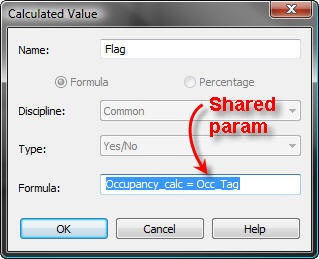
Flag1

In the schedule Formatting tab, select the parameter you want to add the condition to and type Alt+N to reveal the hidden gem:

CF1

Schedule1Here’s an example of what the schedule would look like when values don’t match up.

Note: You can check the option Hidden field in the Formatting tab to hide the calculated parameter used for the condition and it will still work just fine.

Some observations: Null values are ignored in calculated parameters (see the yellow cells above) and in conditional formatting. My condition “Flag = No” is not being met because the value is null, yet Revit is not coloring my cells. This needs fixed!

Room Area

For this scenario, I want to ensure that Actual Area:

  1. Is never below the Target Area
  2. Is never more than 5% of the Target Area
  3. Never varies by more than 100 SF from the Target Area

So the formula for parameter Flag would be something like this:

or(not(abs(Area - Program Area) < 100 SF), % Area Variance < 0, not(% Area Variance < 0.05))

where Area is the Actual Area, Program Area is the Target Area, & % Area Variance is (Area - Program Area) / Program Area.

Here’s what the resulting schedule would look like:
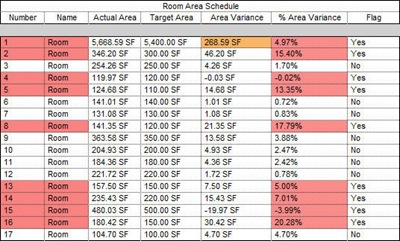
Schedule2

In the above example I added a conditional format (in orange) to highlight cases when the % Area Variance was below 5%, but the area difference was 100 SF or more.

Some observations: It would be really valuable if we could specify the boolean between multiple conditions instead of having Revit assume an “AND” operator. And we should be able to specify different colors for the various conditions instead of just one!

If that were the case, one would be able to highlight rooms with areas above the target with one color, and others below the target with another color. Finally, I also noticed that for Yes/No parameters, the Conditional Formatting dialog would let me change the value of my parameter Flag to “Yes”, but it would revert it back to “No” when I clicked out of the dialog or clicked on something else. Not sure why.

All in all this tool is of great value and I’m sure lots of you will find various ways to use it. Let me know how you intend to implement it!


Share/Save/Bookmark

Friday, March 6, 2009

Text Notes

So in Jumpy Text, we looked at a technique that we can employ to alleviate the well known deficiencies of text in Revit. Now you know how to use Key Schedules for this purpose, but I wanted to take this a little step further after a great tip I learned from a discussion with my good friend Daniel Hurtubise of RevitIt.

I mentioned the problem of the schedule title being the same as the name of the key schedule in the Project Browser (PB). So if you prefix the names to group them nicely in the PB, you’ll have a problem with your title. To get around this, we can disable the title and group the headings. Then we can type in our new “title” in this new space, independently of the name!

The problem though is that for notes on documents, we don’t need the headings, so this solution wouldn’t be very clean as we don’t want to see the parameter names and if we turn them off, so does the new group “title”. However Revit lets us edit these names and to my surprise (and here comes my little contribution), it lets us make them blank! So by unchecking the option Blank row before data, we can still end up with a separate title, a blank row and our text notes indented with a number for each paragraph, as you can see below (click to see larger animation). This is without a doubt a better solution than typing text for the title. Enjoy!

KeySchedTrick


Share/Save/Bookmark

Sunday, March 1, 2009

Jumpy Text

This is one of the most annoying behaviors in Revit. I can’t believe that we’ll have to deal with it for at least another year. Pretty sad.

We need text, don’t we? Unfortunately creating project notes in Revit is a frustrating endeavor. Text re-formats itself depending on the zoom factor, which is totally insane if you ask me. Take a look at this animated gif.

Jumpy Text

So how do we deal with this issue? You could link in a dwg that contains your text, but this can potentially result in more headaches as mtext boxes are sometimes ignored by Revit. And honestly, I want to stop using DWG files altogether. Another huge limitation is the inability to indent text so you can number each paragraph and be able to adjust the column width of your text without resulting in a formatting do-over.

Back at AU2007, I learned a tip which I’ll be employing from now on. I feel really dirty using it, but there’s no other solution I can think of. I’m not sure where it originated but I learned about it through a hallway chat with the “Rock-n-Roll Architect”, aka Steven Shell. If you know who contributed it, please post a comment. Here it goes…

Create a Key Schedule for a category that you never use. No, the Roads category is not available ;) In this example I chose the Sprinklers category but you’re free to pick anything you want.

New Schedule

Notice the Name field. That’s the name of your key schedule in the project browser, and will also be your Title when you drag this onto a sheet. It’s not necessary to change it in this dialog since you can rename it later in the Project Browser. I named my example “GENERAL NOTES”. Next, type in a Key name and click OK, which leads us to the Fields tab.

Schedule properties

Add a new parameter to house your text notes; I used “MyText”. In the Sorting/Grouping tab, sorting will be set by default to the Key Name, which is exactly what we want. This will contain the numbering of each paragraph. To finish up, set your appearance preferences. In my case, I wanted a wide outline and turned off the option to Show Headers as we don’t really need them. Once you click OK, you’ll be in schedule editing mode which will just show the title (If you choose to not have a title, you’ll get a blank page). The next step is to add rows to your key schedule. Let’s use Revit’s new interface to illustrate (click animated gif for larger view).

KeySchedule

Now you just drag this onto a sheet and make final adjustments there. This should eliminate the problem of Jumpy Text. A couple of issues that you’ll face are the fact that you don’t have Project Browser sorting/grouping capabilities and that you cannot use the same schedule name twice, so you’ll have to get creative. One option is to have these key schedules named with a prefix so they’ll be grouped together in the Project Browser and separate from “real” key schedules (ex: txt_Roof General Notes). Then you would turn off the Title and just type in text directly on your sheet as seen below.

PS: Autodesk, PLEASE, this needs fixed. Seriously.

OnSheet


Share/Save/Bookmark

Tuesday, January 27, 2009

Metric and Imperial Areas in Schedules

Here's a quick tip on how to create a schedule to show the same information but use different units of measure. I've been pondering whether this was too "simple" to post, but it did have me scratching my head for a while yesterday! After all I'm allowed to post newbie tips too ;) At first I thought I might have to place two schedules side by side, but as we shall see, it's not necessary.

Start by creating a room schedule and add the fields you want. Let's say you added Area and you left the units to use project settings, which are typically Imperial for us in the US (it's about time we move to metric!). Now what if I want another column to list the Area once again but in different units? Once we move the Area field from the "Available" column to the "Scheduled" column, we cannot add it again. So how do we get around this?

The answer is simple: create a calculated value. Don't get stuck thinking that this is just used for complex formulas. This can be as simple as being equal to another parameter. So simply type in "Area" as the formula, give it a name (such as Area_M) and you're set. Now go to the Formatting tab, select the newly created calculated value and change the units by clicking the Field Format button. This technique can also be used for length parameters or anything else that can be reported with different units.

image


Share/Save/Bookmark

Tuesday, January 13, 2009

Beams with sloped edges

Steven Debooy, a fellow blog reader, recently asked me if it was possible to add a parameterized void at the end of a beam to cut it at a slope. That question prompted me to write this post about how one can achieve that result.

a) Adding a void to the beam is a possible solution. I posted a family in the Structural AUGI forums in 2007. Feel free to reverse engineer it and find out how it works. My example has 2 voids instead: one handles positive angles and the other handles negative angles. The user inputs an angle in one parameter, and 2 calculated parameters evaluate that input and return the correct result.

Voids in beam

b) In the 2009 Revit family of products, one can use the Opening by Face tool to achieve the same result. Using this tool to cut the end of a beam, one will get a warning stating that "Opening partially cuts its host". It's not a serious warning (I guess), but it is meant to inform the user that something could potentially be wrong, as usually an opening is meant to have beam material surrounding the entire sketch perimeter! This is the best option if you want to create custom shaped cuts on the fly.

Opening by face

c) This method makes me mad. Why? Because it's only available in Revit Structure (come on people!). NOTE: As of the Subscription Advantage Pack, this functionality is also available in RAC2010. Thanks Factory!  Aaaanyway, You can sketch a reference plane and then use the Cut Geometry tool to trim the beam against the reference plane (actually you can also trim against a grid). Non-linear cuts are not possible with this technique.

cut geometry


Share/Save/Bookmark

Wednesday, November 12, 2008

My Second Revit Project - Part 4

It's been a while since I posted about the latest project that I've been working on for a while now. Below are some images from last week. There's still work to be done (the weather has NOT helped) but hopefully it will be finished by the end of the year. The last major work consists of demolishing some existing parts during Thanksgiving and then the staff and students will move into the new parts of the building.

It is pretty enlightening to follow a job in construction. Regardless of how many drawings you crank out and how carefully detailed something is, you're still at the mercy of how someone interprets notes/markings on a submittal (or whatever mood they woke up in that day!). Sometimes it feels like there's not enough leadership at the subcontractor level and no amount of hand-holding from the contractor side (superintendent and PM) or the Architect is enough. But I'm finding that by maintaining a collaborative spirit, being nice, understanding and firm, you can take care of the Project and help steer it in the right direction.

We're currently helping our client by creating Evacuation maps for occupied spaces. Revit comes in really handy for this task. Here's a snapshot of one such map (the screen color is off, but the printed output is correct!):

EvacMap

Here are some tips about the tools and techniques used:

  1. An Annotation family was created to manage the graphic border layout, title and legend (title block).
  2. A floor plan view was created and the appropriate categories were left visible. Everything was set to halftone with the exception of rooms.
  3. A color scheme was applied (for Area, By Range set to be at least 1SF). This made all rooms show solid with the orange color we wanted.
  4. A Filled Region was applied around the building to make it pop more.
  5. The exit paths were drafted in the sheet view after setting two unique line styles.
  6. Multiple plans were created by Duplicating as Dependent and placed on sheets (with no View Title). Room fills were controlled by overriding visibility in each view. The Reveal Hidden Elements tool made it easy to un-hide one room at a time for each plan view and hide other irrelevant rooms.
  7. An empty sheet was kept handy in the Project Browser with nothing but a title block. To create a new sheet, I simply selected the sheet in the Project Browser and used the copy & paste keystrokes to duplicate the sheet (thanks Luigi for reminding me of this tip!).
  8. The Project Browser was filtered to display only these views and sheets, making it easier to work on this particular task.
  9. When one area of the building was complete, I used a recently added feature to position a new area on a sheet: Pan Active View by activating the view, selecting the crop region, right-clicking on it and selecting Pan Active View. This is similar to just moving the crop region around, but I found panning the view within the crop to be more user-friendly for this task. This function is only available for views placed on sheets.
  10. I'm up to 55 sheets created with about 12 to go, but interestingly enough, the file only gained about 1MB in size!


Share/Save/Bookmark

Thursday, August 7, 2008

Adjusting stubborn Topography

This trick has a wide range of applications. I have used it before when we needed to move an entire wing of a building by some amount, but couldn't do it within the project because some elements with a vertical workplane prevented us from moving those objects with others horizontally.

In this case it was the opposite. We wanted to move topography vertically, but for some reason, we couldn't. Even if you choose a vertical workplane in a 3D view, topography will still try to move in a horizontal plane. You should be able to move it vertically in a section or elevation, but in our case it wouldn't budge. Also, topography doesn't host to levels, which would have come in really handy in this situation! The last thing we wanted was to edit each point individually or spend a lot of time troubleshooting. So here's what we did:

  1. We selected all the elements we wanted to move vertically and grouped them.
  2. We selected the group and made it into a link (keep your eye on the Options Bar).
  3. Now we were able to move the linked file vertically. We then went in reverse...clicked the option to Bind this linked file (again, eye on the Options Bar).
  4. Now it was turned back into a group, so the next step was to ungroup it and delete the unused group.

How many other situations will this technique come in handy to save you? NOTE: Watch out if you're using phasing as you might lose information if you have custom named phases.


Share/Save/Bookmark

Tuesday, August 5, 2008

Level Claustrophobia

Have you ever woke up after a bad dream about your project being filled up with tons of levels and you couldn't make heads or tails as to why so many were created? Feel free to post comments of similar dreams :)

Anyway, in my case it wasn't a dream at all. Over the past few weeks I've been slowly coaching some new Reviteers as they work on a good sized project. For most of the team it's their first Revit job, with the exception of a few. They're doing a very nice job so far...modeled the site, walkways, linked two separate projects into a site project, etc. (stadium and arena renovation). But to my horror, there were close to 20 levels with most of them within a few inches of each other, with no logical naming convention. As you can imagine, that makes it really hard to navigate when you're trying to help on an unfamiliar project, and even the team couldn't figure out what each level was for or what was assigned to it.

Obviously this led to a team sit-around-the-PC session and we tried to clean up these levels in the site project first. Here's a list of why having too many levels is a bad thing:

  • Underlays don't work as one would expect. Since an underlay shows elements between the chosen level and the one right above it, with levels closely spaced, it becomes hard to get the desired results.
  • It is hard to visualize your project and it is next to impossible to correctly constrain geometry when you're constantly guessing which is the right level.
  • You'll soon become suicidal at the thought of having to manually hide all the junk levels in each view in your document set, especially when you're also having to adjust all the 2D extents.

Those three points alone should be plenty of good reasons. So now how do we handle the situation once claustrophobia sets in?

  1. We can create a new workset and uncheck the visible by default in all views option. Now place the junk levels on that workset and they won't show up on views unless you manually make the workset visible. This however does not solve the constraining issues.
  2. Bite the bullet and clean your project up.

So in this case we opted for 2. The earlier you can do this, the better. Which brings me to a newly formed wish: When I delete a level, I want Revit to ask me whether I want to delete all elements hosted on that level or whether I want to assign them to the nearest level with the appropriate offset so they stay in the same position. Since this is not currently possible (maybe through the API one could build an app. to do this...I'll ask Guy), the process is a little more painful, which is a huge reason to be very careful before going level-happy. Here's what we did:

  • In a 3Dview, we set all categories and subcats to be visible. Then we window-selected everything in the 3D view and the handy new filter tool told us how many objects we had in the selection set.
  • In a section/elevation view, we picked one level and deleted it. If we visually saw elements disappearing, then we undid immediately. If not, we reselected objects and checked how many elements were selected. Unfortunately, sometimes the Undo function quit working when elements were deleted so we had to start over and began saving after each successful deletion. This is a really annoying Revit trait. The Undo should never stop working!
  • This worked for levels that had nothing hosted on them, but how do we figure which elements pertain to a level? We had plenty of levels with around 10-20 hosted objects and wanted to clean them out. So instead we tried a different technique: we raised the level up by 300 feet at a time. This made it easy to see elements constrained to that level, such as walls. Elements that were completely hosted on the elevated level were then moved to another one. Once nothing was referencing the level, we deleted it.
  • If views associated with this level existed, Revit told us it was about to delete them, so we canceled and checked these views. We set the view parameter Display Model to NONE and checked if there were any view-specific elements. If there were, we copied them, deleted the view and recreated a new one associated to a different level. Then we pasted these elements in. Once all views were taken care of, the level could be deleted.
  • I took a sip of caffeine and moved on to the next...

I can sense that by now you're exhausted reading this. Imagine having to do this for several levels. I'm sure you'll think seriously next time before you copy a level or create a new one! Just keep in mind that levels are "vertical organizational devices". You could build a 100 story tower with one level at the base for example, and set offsets relative to it. Would it be wise to do so? Absolutely not. You want to use levels where it makes sense, such as where floor to floor heights might change. This will help you manage those changes easily later on by simply moving a level instead of having to deal with multiple object offsets.


Share/Save/Bookmark

Saturday, May 31, 2008

Where's my curtain wall grid?

Curtain walls are one weird family. Don't get me wrong, I like how easy they are to "design" them. They are very flexible and you can add/subtract grids, move them around etc. Obviously, they could be better, but on the whole they're great.

Why do I think curtain walls are weird? Mainly because you cannot turn off their visibility like any other object in Revit, as the different components that make up a curtain wall are scattered around under numerous categories: Walls, Curtain Wall Mullions and Curtain Panels. Personally, I think it's time that these categories are re-visited.

My suggestion is that there should be a "Curtain Wall" category with at least the following subcategories:

  1. Panels
  2. Mullions
  3. Grids

This way, users can turn off curtain wall visibility at one go just like other object categories, and can also have a logical number of subcategories that users would find more "natural" than what is currently implemented.

So now back to the original question. Grids are controlled by the Wall category, so if you're trying to move mullions around and cannot seem to be able to pick the grid that controls mullion location, check that the Wall category's visibility is turned on. This catches a lot of users by surprise when documenting/designing curtain wall elevations in views with applied view templates that might turn off the wall categories. Once again, with the current implementation, if a wall surrounds a curtain wall and we want to turn them off for documentation purposes, we have to manually override the visibility of such walls or use the linework tool to turn wall linework to invisible lines. Now that's weird!


Share/Save/Bookmark

Wednesday, May 7, 2008

DWG visibility in Revit projects

When you link or import a DWG file into your project (with the option "Current view only" unchecked), Revit sees this information as part of the building model and will use standard model visibility rules to display it. If you check the above mentioned option, Revit will see it as view-specific "annotation" and that DWG will be visible only in the view where it was imported/linked.

The use of DWG files in Revit projects varies. The most typical applications are to pull from one firm's detail library and for use as background drawings, such as site surveys, casework backgrounds, etc. I know, not a great use, but when transitioning, you need to somehow eat that elephant in small bites, especially when project size is large and Revit knowledge is not substantial!

When used as backgrounds, DWG visibility could get a bit confusing. For example last week I was helping someone with their project. This user linked a DWG on the first level and another on the second level. Typically, if you open the second floor plan, you would not expect the first floor DWG to show up. The team wanted to quickly bail out and turn it off manually on the second floor plan by unchecking the subcategory visibility in the Imported Categories tab, but that's just bad practice in my opinion. If you go this route, you'll have to manage visibility in every second floor plan view! Not very efficient, isn't it? The key is to understand why it was showing up and prescribe a cure.

We checked the View Range and it was set correctly. We opened the linked file in ADT/ACA and looked at it in side elevation and saw a number of lines going up in the Z direction. Once your View Range can see any geometry in the DWG file, the entire link/import shows up. The DWG link/import doesn't act as a cuttable object; instead, once the View Range overlaps a part of the DWG, it acts as a switch and turns the light on over the entire link.

So next time your "2D" DWG seems to misbehave, just check for those maverick elements that turn it into a 3D object and zero out their Z coordinate values or lower them so your View Range doesn't overlap these elements. You'll be pleased with the results ;)


Share/Save/Bookmark

Sunday, May 4, 2008

Creating Types while in Group Edit mode

A Revit friend of mine (self-proclaimed "Genius"...you know who you are!), didn't know this one so I'm betting this makes for a good tip ;)

Suppose you are editing a group and you want to create a new type of some family. For the purpose of this example, let's say you want to create a new wall type and you're already in Group Edit Mode (your screen is yellow and anything outside the group is greyed out). If you select a wall in your drawing area and go to its properties, click "Edit / New..." and then click "Duplicate", you get the error stating "Can't create duplicates in Edit Group mode."

You cannot go this route to create new types. You have to go to the Project Browser, find the family and type you want and duplicate it there. Then make the necessary edits, rename the type, etc., and change your element (wall in this example) to this new type. You will not get the same error and can safely finish editing the group.


Share/Save/Bookmark

Sunday, April 20, 2008

"Balustration" continued

Today I'm going to pick up where I left off in the other post on this topic.

Previously, we discussed how the left-over space in the Railing system family can be filled with a baluster at a user-defined spacing. The problem is that we do not have the same level of control we have with the main baluster pattern and the posts, so we cannot define where the top and bottom of this left-over is through the Edit Baluster Placement dialog. So we have to resort to modifying our post and/or baluster families.

Before we begin, here are some interesting facts about balusters:

  • Baluster families (whether posts, panels or neither) cannot be generated through a Generic Model family by selecting the appropriate category, so if creating something from scratch, you need to make sure to start with the appropriate template. The category does not show in the list and in fact, you cannot even do an in-place baluster family. When you open such a family or create one from a template, you'll notice that no category is highlighted in the Family Category and Parameters dialog.

  • The Top Cut Angle and Bottom Cut Angle Instance parameters are used for baluster families. These parameters give you the ability to trim the top and base of a baluster according to the slope of the top and base hosts. The Yes/No parameter "Post"works in conjunction with these parameters. If checked, these angles are set to zero and the top and base of the baluster are cut horizontally against the host and/or the railing's profile origin. Notice that these parameters are also available in the Baluster - Post family template, but the angles and sloping reference planes are not drawn. I personally prefer to use the Baluster template in lieu of the Post template, so I don't have to maintain two separate families. I can simply check the Post parameter to have it trim horizontally.

  • Even though you can un/check the baluster family parameters "Always Vertical" and "Shared", the OK button stays greyed out. So basically these cannot be changed.

  • Baluster templates have a fixed origin. Reference plane's "Defines Origin" parameter has no effect on changing the origin location. Make sure to locate your geometry relative to the original ref. planes set to define the origin. Avoid moving these as you'll get frustrated when the usual logic for geometry location in your project doesn't seem to hold anymore ;) If you lose the origin location, simply import a dwg into your family with some lines located at the WCS Origin, using the Origin to Origin option with Orient to View checked and you'll easily find where it is.

Now that you have some great cocktail-party facts that will make you look smart at your next User meeting or Mixer, we'll move on to see how to give an offset to the base of the baluster family.


Above you can see what's necessary to create control for the base offset. The baluster family has a void at the base and top. For the base void, we need to control the top of the void sketch. So I added a horizontal ref. plane and assigned a label parameter. I called it Base Offset. Then I moved the sloped ref. plane to the intersection of this new horizontal ref. plane and the vertical, center plane. The angular parameter will rotate the sloped plane around the intersection of the sloped plane and the horizontal plane (the two planes that the angular parameter references). In this case, even if you turn on automatic sketch dimensions, you will not see these relationships. Since the horizontal plane can move vertically based on the value of the Base Offset parameter, Revit will also move the sloped plane to maintain the intersection point in the same place. Also note that there's another parameter called "Baluster Height" that is not shown in the image (from ref. level to second ref. plane from top).

When you load this family in your project and assign a positive value, the base of the baluster will move vertically. The same can be done to control the top of the baluster. The top will trim at the angle of the railing slope, but the bottom will be horizontal since the host for the base is flat (the floor or the thread). If you want to make the bottom of the baluster be cut at the same angle as the top, replace the parameter "Bottom Cut Angle" with "Top Cut Angle".


Share/Save/Bookmark

Sunday, April 13, 2008

Cleaning Family Templates

So like many users, you have tried to desperately get rid of stubborn reference planes and labels/dimensions that show up whenever you create a new family from a stock template. You probably tried hitting the Delete key harder and harder, to no avail. But where there's a will, there's a way!

What you need to do is to rename your rft templates to rfa (as a precaution, always make a copy to experiment on) and open the rfa family in Revit. You can now delete all the reference planes and labels/dimensions. Note that parameters cannot be removed (maybe someday I'll stumble on a way to do that, but I highly doubt it!). Click the video below for a demonstration of how this is done for a casework family template.

Cleaning out a Casework Family Template


Share/Save/Bookmark
